Getting Started Examples
Most minimal example
[1]:
import pydocmaker as pyd

doc = pyd.Doc.get_example()
doc.show()
Some Example Text
One morning, when Gregor Samsa woke from troubled dreams, he found himself transformed in his bed into a horrible vermin. He lay on his armour-like back, and if he lifted his head a little he could see his brown belly, slightly domed and divided by arches into stiff sections. The bedding was hardly able to cover strong it and seemed ready to slide off any moment. His many legs, pitifully thin compared with the size of the rest of him, link waved abouthelplessly as he looked. “What's happened to me?” he thought. It wasn't a dream. His room, a proper human room although a little too small, lay peacefully between its four familiar walls.
The bedding was hardly able to cover it.
It showed a lady fitted out with a fur hat and fur boa who sat upright, raising a heavy fur muff that covered the whole of her lower arm towards the viewer a solid fur muff into which her entire forearm disappeared..
Things we know about Gregor's sleeping habits.
- He always slept on his right side.
- He has to get up early (to start another dreadful day).
- He has a drawer and a alarm clock next to his bed.
- His mother calls him when he gets up to late.
First he wanted to stand up quietly and undisturbed, get dressed, above all have breakfast, and only then consider further action, for (he noticed this clearly) by thinking things over in bed he would not reach a reasonable conclusion. He remembered that he had already often felt a light pain or other in bed, perhaps the result of an awkward lying position, which later turned out to be purely imaginary when he stood up, and he was eager to see how his present fantasies would gradually dissipate. That the change in his voice was nothing other than the onset of a real chill, an occupational illness of commercial travelers, of that he had not the slightest doubt.
Formatting and Images
function metamorphose(protagonist,author){
    if( protagonist.name.first === 'Gregor' && author.name.last === 'Kafka' ){
        protagonist.species = 'insect';
    }
}
This is some dummy LaTeX text.
this is how to embed a table:
| Name | Age | City |
|---|---|---|
| John Doe | 30 | New York |
| Jane Smith | 25 | Los Angeles |
| Mike Johnson | 35 | Chicago |

Writing a small pydoc
[2]:
doc = pyd.Doc() # basic doc where we always append to the end
doc.add('dummy text') # adds raw text

# this is how to add parts to the document
doc.add_pre('this will be shown as preformatted') # preformatted
doc.add_md('This is some *fancy* `markdown` **text**') # markdown
doc.add_tex(r'\textbf{Hello, LaTeX!}') # latex

# this is how to add an image from link
doc.add_image("https://github.githubassets.com/assets/GitHub-Mark-ea2971cee799.png", caption='', children='', width=0.5)

doc.show()
this will be shown as preformatted
This is some fancy markdown text
Hello, LaTeX!

“Showing” Documents in iPython/Terminal
the Doc class has a method called show which will detect if its running in Ipython. If it does it will render the document and show it. If not it will fallback to a rich consiole and do its best to show the content on the terminal (on a terminal image support is very limited). The desired rendering format can be set with the engine argument. rich, markdown, HTML, or PDF is possible.
Any environemnt:
[3]:
doc.show()
this will be shown as preformatted
This is some fancy markdown text
Hello, LaTeX!
NOTE: when rendering with “rich” console image support is very limited, since images will be printed on the console as pixels
[4]:
doc.show('rich')
╭─────────────────────────────────────────── 2026-01-28 1524 my-pydoc ────────────────────────────────────────────╮
│ dummy text                                                                                                      │
│                                                                                                                 │
│                                     ╭────────────────────────────────────╮                                      │
│                                     │ this will be shown as preformatted │                                      │
│                                     ╰────────────────────────────────────╯                                      │
│                                                                                                                 │
│                                                                                                                 │
│ This is some fancy markdown text                                                                                │
│ Hello, LaTeX!                                                                                                   │
│                                                                                                                 │
│ ╭─────────────────────────────────────────────────────────────────────────────────────────────────────────────╮ │
│ │                            ▄▄▄▄▄▄▄▄▄▄▄▄▄▄▄▄▄▄▄▄▄▄▄▄▄▄▄▄▄▄▄▄▄▄▄▄▄▄▄▄▄▄▄▄▄▄▄▄▄▄▄▄                             │ │
│ │                            ▄▄▄▄▄▄▄▄▄▄▄▄▄▄▄▄▄▄▄▄▄▄▄▄▄▄▄▄▄▄▄▄▄▄▄▄▄▄▄▄▄▄▄▄▄▄▄▄▄▄▄▄                             │ │
│ │                            ▄▄▄▄▄▄▄▄▄▄▄▄▄▄▄▄▄▄▄▄▄▄▄▄▄▄▄▄▄▄▄▄▄▄▄▄▄▄▄▄▄▄▄▄▄▄▄▄▄▄▄▄                             │ │
│ │                            ▄▄▄▄▄▄▄▄▄▄▄▄▄▄▄▄▄▄▄▄▄▄▄▄▄▄▄▄▄▄▄▄▄▄▄▄▄▄▄▄▄▄▄▄▄▄▄▄▄▄▄▄                             │ │
│ │                            ▄▄▄▄▄▄▄▄▄▄▄▄▄▄▄▄▄▄▄▄▄▄▄▄▄▄▄▄▄▄▄▄▄▄▄▄▄▄▄▄▄▄▄▄▄▄▄▄▄▄▄▄                             │ │
│ │                            ▄▄▄▄▄▄▄▄▄▄▄▄▄▄▄▄▄▄▄▄▄▄▄▄▄▄▄▄▄▄▄▄▄▄▄▄▄▄▄▄▄▄▄▄▄▄▄▄▄▄▄▄                             │ │
│ │                            ▄▄▄▄▄▄▄▄▄▄▄▄▄▄▄▄▄▄▄▄▄▄▄▄▄▄▄▄▄▄▄▄▄▄▄▄▄▄▄▄▄▄▄▄▄▄▄▄▄▄▄▄                             │ │
│ │                            ▄▄▄▄▄▄▄▄▄▄▄▄▄▄▄▄▄▄▄▄▄▄▄▄▄▄▄▄▄▄▄▄▄▄▄▄▄▄▄▄▄▄▄▄▄▄▄▄▄▄▄▄                             │ │
│ │                            ▄▄▄▄▄▄▄▄▄▄▄▄▄▄▄▄▄▄▄▄▄▄▄▄▄▄▄▄▄▄▄▄▄▄▄▄▄▄▄▄▄▄▄▄▄▄▄▄▄▄▄▄                             │ │
│ │                            ▄▄▄▄▄▄▄▄▄▄▄▄▄▄▄▄▄▄▄▄▄▄▄▄▄▄▄▄▄▄▄▄▄▄▄▄▄▄▄▄▄▄▄▄▄▄▄▄▄▄▄▄                             │ │
│ │                            ▄▄▄▄▄▄▄▄▄▄▄▄▄▄▄▄▄▄▄▄▄▄▄▄▄▄▄▄▄▄▄▄▄▄▄▄▄▄▄▄▄▄▄▄▄▄▄▄▄▄▄▄                             │ │
│ │                            ▄▄▄▄▄▄▄▄▄▄▄▄▄▄▄▄▄▄▄▄▄▄▄▄▄▄▄▄▄▄▄▄▄▄▄▄▄▄▄▄▄▄▄▄▄▄▄▄▄▄▄▄                             │ │
│ │                            ▄▄▄▄▄▄▄▄▄▄▄▄▄▄▄▄▄▄▄▄▄▄▄▄▄▄▄▄▄▄▄▄▄▄▄▄▄▄▄▄▄▄▄▄▄▄▄▄▄▄▄▄                             │ │
│ │                            ▄▄▄▄▄▄▄▄▄▄▄▄▄▄▄▄▄▄▄▄▄▄▄▄▄▄▄▄▄▄▄▄▄▄▄▄▄▄▄▄▄▄▄▄▄▄▄▄▄▄▄▄                             │ │
│ │                            ▄▄▄▄▄▄▄▄▄▄▄▄▄▄▄▄▄▄▄▄▄▄▄▄▄▄▄▄▄▄▄▄▄▄▄▄▄▄▄▄▄▄▄▄▄▄▄▄▄▄▄▄                             │ │
│ │                            ▄▄▄▄▄▄▄▄▄▄▄▄▄▄▄▄▄▄▄▄▄▄▄▄▄▄▄▄▄▄▄▄▄▄▄▄▄▄▄▄▄▄▄▄▄▄▄▄▄▄▄▄                             │ │
│ │                            ▄▄▄▄▄▄▄▄▄▄▄▄▄▄▄▄▄▄▄▄▄▄▄▄▄▄▄▄▄▄▄▄▄▄▄▄▄▄▄▄▄▄▄▄▄▄▄▄▄▄▄▄                             │ │
│ │                            ▄▄▄▄▄▄▄▄▄▄▄▄▄▄▄▄▄▄▄▄▄▄▄▄▄▄▄▄▄▄▄▄▄▄▄▄▄▄▄▄▄▄▄▄▄▄▄▄▄▄▄▄                             │ │
│ │                            ▄▄▄▄▄▄▄▄▄▄▄▄▄▄▄▄▄▄▄▄▄▄▄▄▄▄▄▄▄▄▄▄▄▄▄▄▄▄▄▄▄▄▄▄▄▄▄▄▄▄▄▄                             │ │
│ │                            ▄▄▄▄▄▄▄▄▄▄▄▄▄▄▄▄▄▄▄▄▄▄▄▄▄▄▄▄▄▄▄▄▄▄▄▄▄▄▄▄▄▄▄▄▄▄▄▄▄▄▄▄                             │ │
│ │                            ▄▄▄▄▄▄▄▄▄▄▄▄▄▄▄▄▄▄▄▄▄▄▄▄▄▄▄▄▄▄▄▄▄▄▄▄▄▄▄▄▄▄▄▄▄▄▄▄▄▄▄▄                             │ │
│ │                            ▄▄▄▄▄▄▄▄▄▄▄▄▄▄▄▄▄▄▄▄▄▄▄▄▄▄▄▄▄▄▄▄▄▄▄▄▄▄▄▄▄▄▄▄▄▄▄▄▄▄▄▄                             │ │
│ │                            ▄▄▄▄▄▄▄▄▄▄▄▄▄▄▄▄▄▄▄▄▄▄▄▄▄▄▄▄▄▄▄▄▄▄▄▄▄▄▄▄▄▄▄▄▄▄▄▄▄▄▄▄                             │ │
│ │                            ▄▄▄▄▄▄▄▄▄▄▄▄▄▄▄▄▄▄▄▄▄▄▄▄▄▄▄▄▄▄▄▄▄▄▄▄▄▄▄▄▄▄▄▄▄▄▄▄▄▄▄▄                             │ │
│ │                            ▄▄▄▄▄▄▄▄▄▄▄▄▄▄▄▄▄▄▄▄▄▄▄▄▄▄▄▄▄▄▄▄▄▄▄▄▄▄▄▄▄▄▄▄▄▄▄▄▄▄▄▄                             │ │
│ │                            ▄▄▄▄▄▄▄▄▄▄▄▄▄▄▄▄▄▄▄▄▄▄▄▄▄▄▄▄▄▄▄▄▄▄▄▄▄▄▄▄▄▄▄▄▄▄▄▄▄▄▄▄                             │ │
│ ╰────────────────────────────────── Figure 1: GitHub-Mark-ea2971cee799.png ───────────────────────────────────╯ │
│                                                                                                                 │
│                                                                                                                 │
╰─────────────────────────────────────────────────────────────────────────────────────────────────────────────────╯
In the “rich” console as well as markdown you can also switch off showing the images and instead show placeholders
[5]:
doc.show('rich', embed_images=False)
╭─────────────────────────────────────────── 2026-01-28 1524 my-pydoc ────────────────────────────────────────────╮
│ dummy text                                                                                                      │
│                                                                                                                 │
│                                     ╭────────────────────────────────────╮                                      │
│                                     │ this will be shown as preformatted │                                      │
│                                     ╰────────────────────────────────────╯                                      │
│                                                                                                                 │
│                                                                                                                 │
│ This is some fancy markdown text                                                                                │
│ Hello, LaTeX!                                                                                                   │
│                                                                                                                 │
│ ╭─────────────────────────────────────────────────────────────────────────────────────────────────────────────╮ │
│ │                                                                                                             │ │
│ │                  PLACEHOLDER FOR IMAGE:                                                                     │ │
│ │                   name: GitHub-Mark-ea2971cee799.png                                                        │ │
│ │                   base64 size: 9668                                                                         │ │
│ │                   content: iVBORw0KGgoAAAANSUhEUgAAAjAAAA...+jbnMGMwU6SgAAAABJRU5ErkJggg==                  │ │
│ │                                                                                                             │ │
│ ╰────────────────────────────────── Figure 1: GitHub-Mark-ea2971cee799.png ───────────────────────────────────╯ │
│                                                                                                                 │
│                                                                                                                 │
╰─────────────────────────────────────────────────────────────────────────────────────────────────────────────────╯
[6]:
doc.show('md', embed_images=False)
dummy text
this will be shown as preformatted
This is some fancy markdown text
\textbf{Hello, LaTeX!}
PLACEHOLDER FOR IMAGE:
name: GitHub-Mark-ea2971cee799.png
base64 size: 9690
content: data:image/png;base64,iVBORw0K…+jbnMGMwU6SgAAAABJRU5ErkJggg==
Image 1: None
In IPython you can also render markdown html or pdf:
[7]:
doc.show('md')
dummy text
this will be shown as preformatted
This is some fancy markdown text
\textbf{Hello, LaTeX!}
Image 1: None
[8]:
doc.show('html')
this will be shown as preformatted
This is some fancy markdown text
Hello, LaTeX!
Or (NOTE: some IDEs do not support this and instead open a “save” dialog, but in a browser with jupyter this works):
[9]:
# doc.show('pdf') # this is commented out since within automatically generated documentation for this library it dows not work.
Exporting pydocs to common formats
export via:
[10]:
import os
# some dir to write my example files to
os.makedirs('../exported_docs_examples', exist_ok=True)
[11]:
# returns string
text_html = doc.export('html')
[12]:
# or write a file
doc.export('html', '../exported_docs_examples/outfile.html')
[12]:
True
Or alternatively:
[ ]:
doc.to_html('../exported_docs_examples/outfile.html') # will write a HTML file
doc.to_typst('../exported_docs_examples/outfile.typ') # will write a typst file
doc.to_pdf('../exported_docs_examples/outfile.zip') # will write a PDF file using the default engine (typst if installed, else pandoc, else latex)
doc.to_pdf('../exported_docs_examples/outfile.zip') # will write the whole latex project dir as a zip file
doc.to_markdown('../exported_docs_examples/outfile.md') # will write a Markdown file
doc.to_docx('../exported_docs_examples/outfile.docx') # will write a docx file
doc.to_textile('../exported_docs_examples/outfile.textile.zip') # will pack all textile files and write them to a zip archive
doc.to_tex('../exported_docs_examples/outfile.tex.zip') # will pack all tex files and write them to a zip archive
doc.to_ipynb('../exported_docs_examples/outfile.ipynb') # will write a ipynb file

doc.to_json('../exported_docs_examples/outfile.json') # saves the document
True
Exporting to PDFs (via typst, pandoc, LaTeX, Word, or Libreoffice)
[ ]:
# will write a PDF file using typst (fastest, most robust and best looking engine if typst is installed, else will fallback to one of the below options)
doc.to_pdf('../exported_docs_examples/outfile_pdf_typst.pdf', engine="typst")
[14]:
# will write a PDF file using pandoc (fastest, most robust, but very limited formatting options)
doc.to_pdf('../exported_docs_examples/outfile_pdf_pandoc.pdf', engine="pandoc")
[14]:
True
[15]:
# will write a PDF file using any installed pdflatex compiler
doc.to_pdf('../exported_docs_examples/outfile_pdf_latex.pdf', engine="tex")
[15]:
True
[16]:
# will write a PDF file using Microsoft Word (only works on windows with win32com and word installed)
doc.to_pdf('../exported_docs_examples/outfile_pdf_word.pdf', engine="tex")
[16]:
True
[17]:
# will write a PDF file using Libreoffice
doc.to_pdf('../exported_docs_examples/outfile_pdf_libreoffice.pdf', engine="tex")
[17]:
True
Add pyplot Figures to your pydoc
say you have a figure like below
[18]:
import matplotlib.pyplot as plt
import numpy as np

# Fixing random state for reproducibility
np.random.seed(19680801)


fig, ax = plt.subplots()
ax.plot(np.random.rand(20), '-o', ms=20, lw=2, alpha=0.7, mfc='orange')
ax.grid()

ax.text(0.5, 0.5, 'watermark', transform=ax.transAxes,
        fontsize=40, color='gray', alpha=0.5,
        ha='center', va='center', rotation=30)
[18]:
Text(0.5, 0.5, 'watermark')
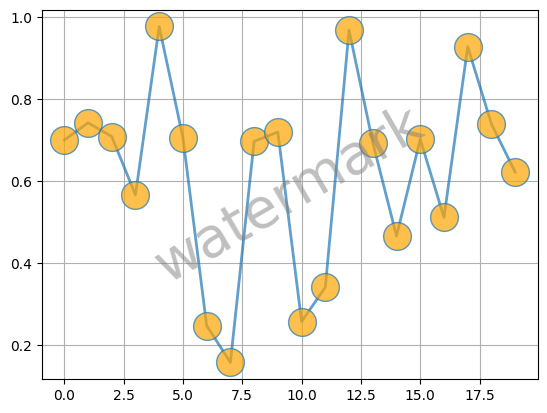
you can embed it in your document like this:
[19]:
doc = pyd.Doc()
doc.add("this is how to embed a figure from pyplot to your document")

# this is how to embed a pyplot figure in your document
doc.add_image(fig, caption='test figure')
# this is equivalent
# doc.add_fig(fig, caption='test figure')


doc.show()

you can also just add the last figure which was generated (pyplots gfc()) by omitting the fig argument.
Lets first generate a random figure to include and then add it to our document
[20]:
# Fixing random state for reproducibility
np.random.seed(19680801)

# Compute pie slices
N = 20
theta = np.linspace(0.0, 2 * np.pi, N, endpoint=False)
radii = 10 * np.random.rand(N)
width = np.pi / 4 * np.random.rand(N)
colors = plt.cm.viridis(radii / 10.)

ax = plt.subplot(projection='polar')
ax.bar(theta, radii, width=width, bottom=0.0, color=colors, alpha=0.5)


doc = pyd.Doc()
doc.add("this is how to add the last matplotlib figure to your document")

# this is how to add the last pyplot figure as image
doc.add_fig(caption='last figure')

doc.show()

plt.close() # prevents the plot from showing up as a pyplot figure in this notebook

Add an image from a numpy array
NOTE: This needs the PIL library installed!
[21]:
# make a dummy image (numpy array)
m = [np.arange(255).astype(np.uint8).tolist() for i in range(255)]
m = np.array(m, dtype=np.uint8)
plt.imshow(m, cmap='gray')

doc = pyd.Doc()
doc.add_image(m, caption = 'numpy generated image', width=0.8)
doc.show()


plt.close() # prevents the plot from showing up as a pyplot figure in this notebook

pydoc to python list
A pydoc document is just a list of dicts. (For details see the other examples). In case you want to transform your pydoc document to a generic python list of dicts just use .dump()
[22]:
doc = pyd.Doc().add_md("Dummy Text").add_pre("Dummy preformatted text")
doc.dump()
[22]:
[{'typ': 'markdown', 'children': 'Dummy Text', 'color': '', 'end': None},
 {'typ': 'verbatim',
  'children': 'Dummy preformatted text',
  'color': '',
  'end': None}]
Storing metadata
You can store any data within your pydoc without it getting rendered. This is done in a meta field.
NOTE: Whatever you save you should stick to the base python types of list, dict, string, float int, or make sure its json serializeable in order to avoid errors. Nested dicts are perfectly fine as well
[23]:
doc = pyd.Doc()

# this will not get rendered
doc.add_meta({'doc_name': 'test'}) # either like this
doc.add_meta(author='Franz Kafka') # or like this.

# nested dicts work fine as well
doc.add_meta(testdata={'index':[1,2,3], 'columns': {'c1': [4,5,6], 'c2': [7,8,9]}})

# this will get rendered
doc.add_md("My dummy text")
doc.show() # show the document in order to show, that nothing of the data we added gets rendered

# show the underlying datastructure to show the data is there
doc.dump()
My dummy text
[23]:
[{'typ': 'meta',
  'children': '',
  'data': {'doc_name': 'test',
   'author': 'Franz Kafka',
   'testdata': {'index': [1, 2, 3],
    'columns': {'c1': [4, 5, 6], 'c2': [7, 8, 9]}}}},
 {'typ': 'markdown', 'children': 'My dummy text', 'color': '', 'end': None}]
NOTE: The call .add_meta will create a metadata element if it does not exist. If it does, it will add to the first meta element it finds.
You can get the metadata within your document like this:
[24]:
doc.get_metadata()
[24]:
{'doc_name': 'test',
 'author': 'Franz Kafka',
 'testdata': {'index': [1, 2, 3],
  'columns': {'c1': [4, 5, 6], 'c2': [7, 8, 9]}}}
since this creates a new empty dict in case no metadat is found you should not work with this dict directly, but rather use the .add_meta method from above to change the metadata.
Adding a table
[25]:
doc = pyd.Doc()
rows = []
colors = ['blue', 'red', 'green']
for irow in range(3):
    row = [pyd.mk_md(f'Row {irow} Col {icol}', color=colors[icol]) for icol in range(3)]
    rows.append(row)

doc.add_table(rows, header=['Blue Text', 'Red Text', 'Green Text'])
doc.show()
| Blue Text | Red Text | Green Text |
|---|---|---|
Row 0 Col 0 |
Row 0 Col 1 |
Row 0 Col 2 |
Row 1 Col 0 |
Row 1 Col 1 |
Row 1 Col 2 |
Row 2 Col 0 |
Row 2 Col 1 |
Row 2 Col 2 |
Note: maybe within the pydocmaker documentation the colors will niot be shown correctly, but within jupyter and real documents this works.
Configuring/testing PDF engines
you can get info on what is available and currently configured in pydocmaker via the following convenience function
[26]:
pyd.info_optionals()
[26]:
{'can_run_pandoc': True,
 'can_use_w32_word': True,
 'can_use_libreoffice': True,
 'pdf_engines_available': ['tex', 'word', 'libreoffice', 'pandoc'],
 'pdf_engine': 'tex',
 'libreoffice_path': 'C:\\Program Files\\LibreOffice\\program\\soffice.exe'}
you can change parameters in the config (for the current session only!) using the methods starting with pyd.config_
[27]:
p = pyd.config_libreoffice_path_get()
p
[27]:
'C:\\Program Files\\LibreOffice\\program\\soffice.exe'
[28]:
pyd.config_libreoffice_path_set(p)
[28]:
'C:\\Program Files\\LibreOffice\\program\\soffice.exe'
[29]:
e = pyd.config_pdf_engine_get()
e
[29]:
'tex'
[30]:
pyd.config_pdf_engine_set(e)
[30]:
'tex'
[31]:
# tests the currently configured default pdf engine
pyd.config_pdf_engine_test()
[31]:
'pdflatex'
[32]:
# searches the system for all available pdf engines and returns them as strings
pyd.config_pdf_engine_scan()
[32]:
['tex', 'word', 'libreoffice', 'pandoc']
[33]:
# searches the system for all available pdf engines and returns them as strings
pyd.config_renderer_default_set('rich')
[33]:
'rich'
[34]:
pyd.config_renderer_default_get()
[34]:
'rich'